How to Reduce PDF Size Before Sharing
2026-06-26
Make PDF files easier to email and upload by preparing images, removing extras, and organising pages carefully.
Use the tool
Ready to try this workflow? Open Image to PDF and convert your file in a few simple steps.
Open Image to PDFImportant limitation
Convert My Docs does not currently offer a dedicated PDF compression tool. This guide focuses on practical preparation steps that can help avoid unnecessarily large PDFs before you create or share them.
If you need advanced compression, image downsampling, or exact file-size targets, you may need a dedicated PDF compressor.
Reduce what goes into the PDF
Remove duplicate photos, blank pages, and unrelated supporting documents before creating or merging a PDF. The easiest way to reduce a file is to avoid adding pages that are not needed.
For image PDFs, use clear cropped images rather than full camera photos with large backgrounds.
Share smarter
If several documents do not need to be in one file, send only the file the receiver requested. If they do need one file, use Merge PDF and check the final page order.
Always open the final PDF before sending, especially when size or page count matters.
FAQ
Does Convert My Docs compress existing PDFs?
No. It does not currently provide a dedicated PDF compression tool.
Related Tools
Related Reading
How to Convert Images to PDF
Combine scans, photos, receipts, and document images into one downloadable PDF file.
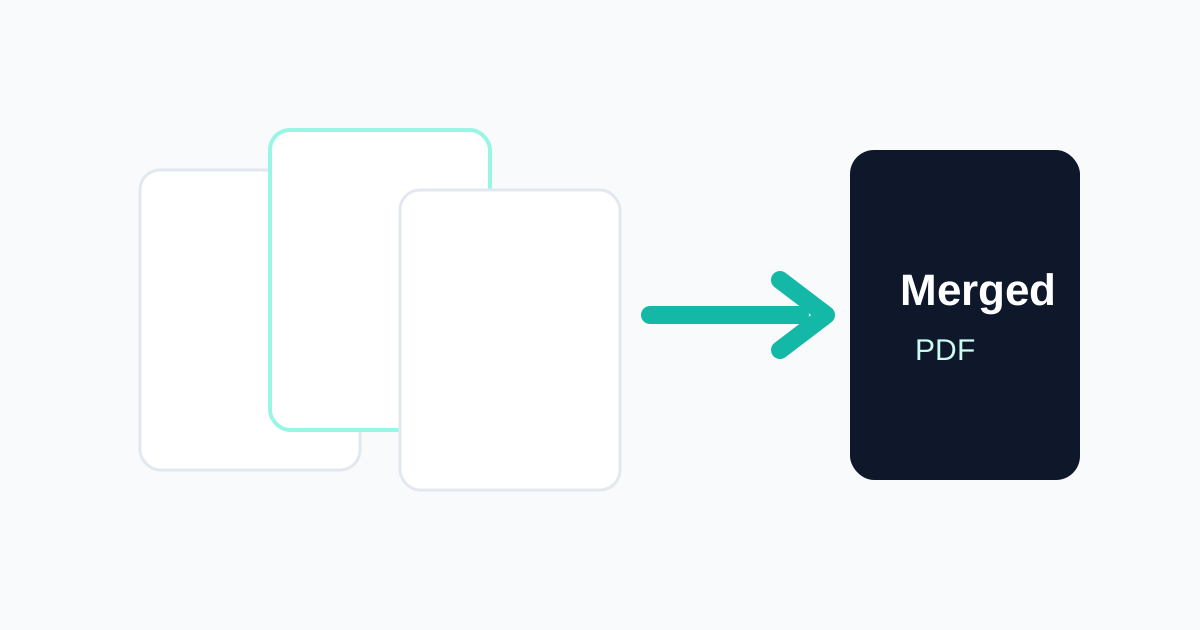
How to Merge PDF Files Online
A step-by-step guide to combining multiple PDFs into one organised file.
PDF Tools
PDF Sharing Best Practices
Share PDFs with cleaner names, correct page order, safer content, and better final checks.
Start converting now
Convert My Docs keeps tools simple, mobile friendly, and privacy aware. Use the right tool for your file and download the result when it is ready.
Use Image to PDF